Quick answer: install, bind, then test
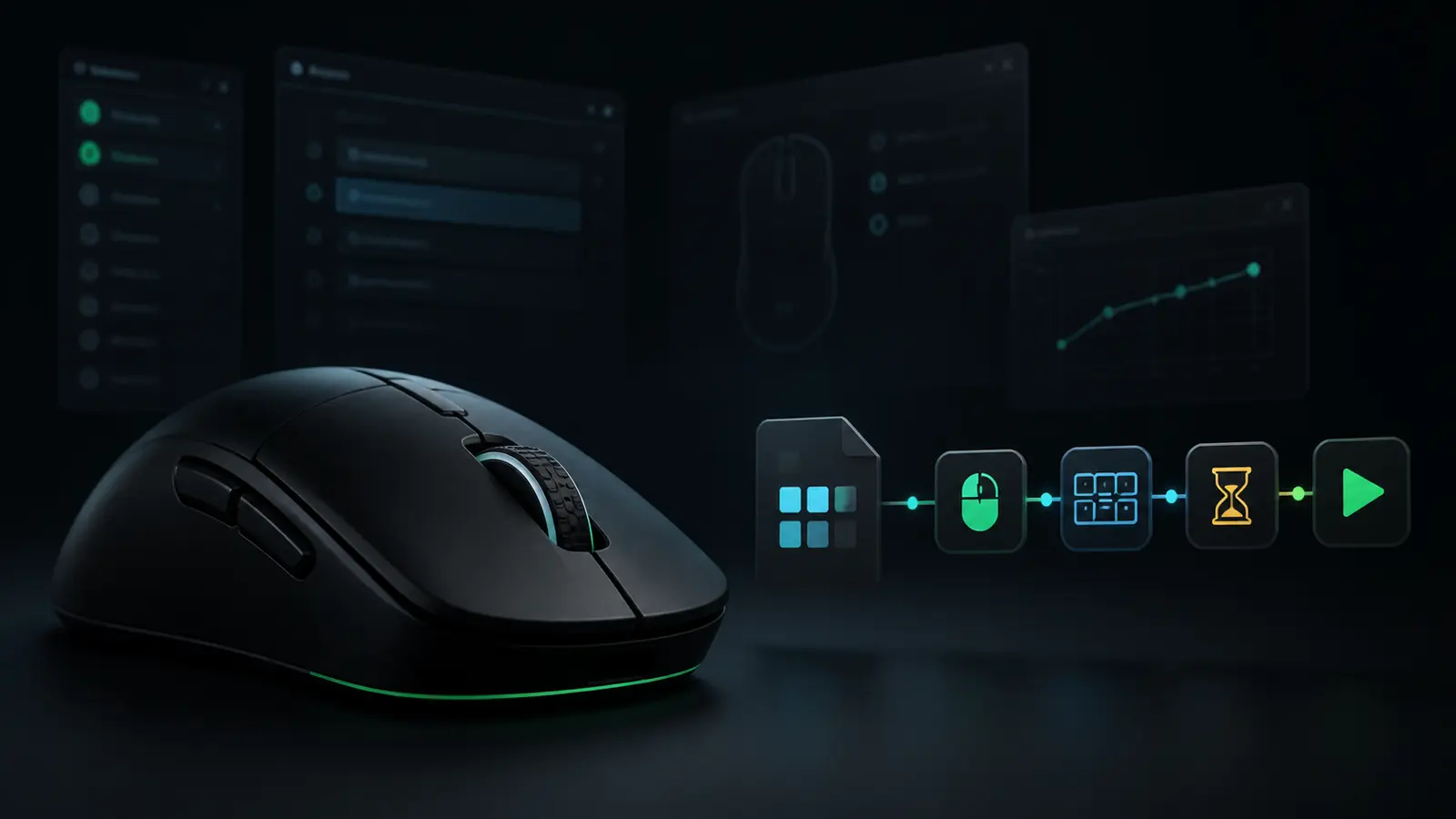
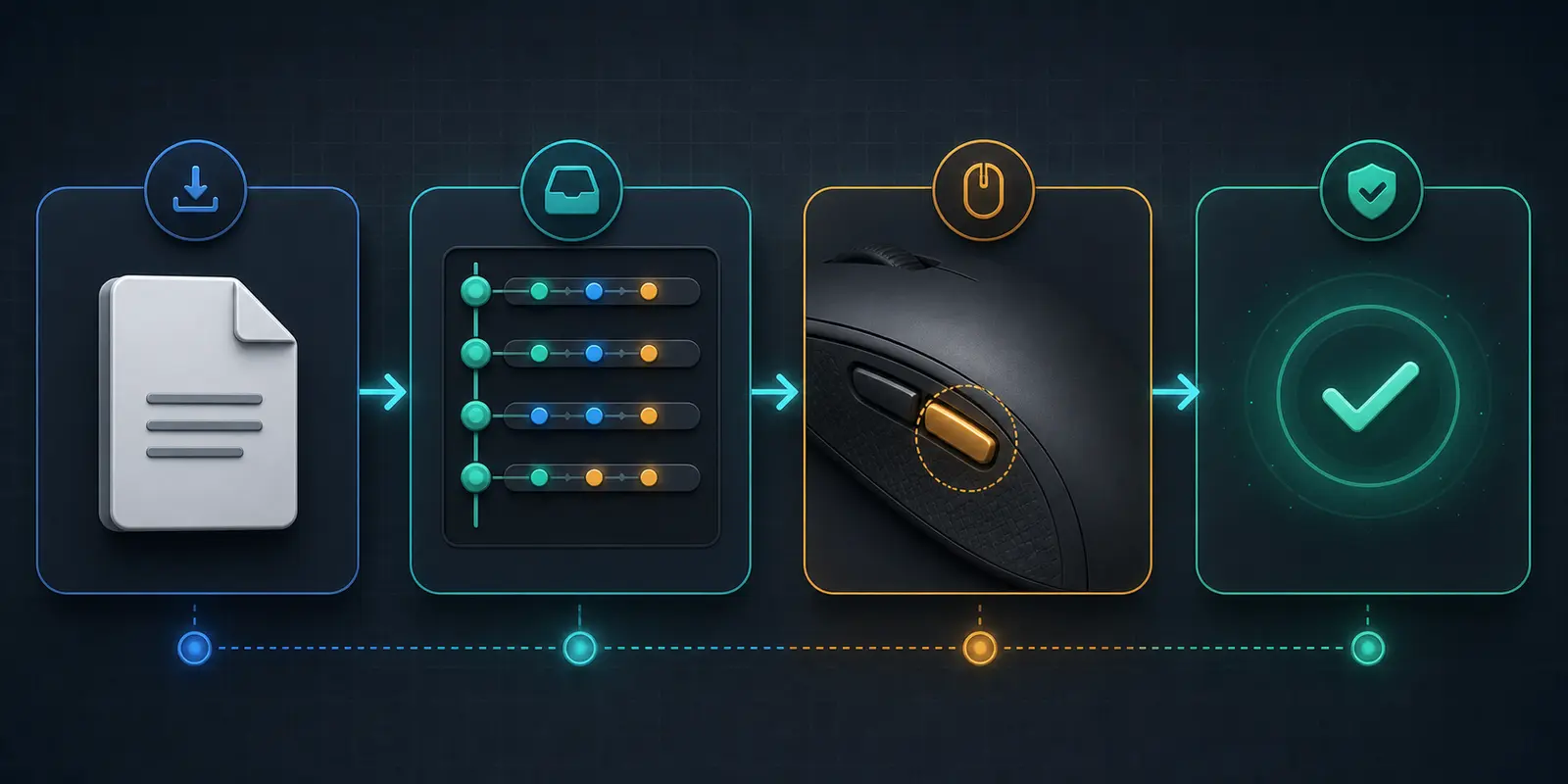
For a new setup, use Razer Synapse 4: open MACRO, import a file created for version 4, review the event list, open your mouse from the Dashboard, assign that macro to a programmable button, choose Play Once, and save.
A downloaded file is not active merely because it appears in the macro library. The assignment and current device profile determine what the physical button does. If you want to compare the original product-oriented procedure, open the matching TopMacro installation article for this language; the guide below is an independently written, expanded workflow based on current Razer documentation.
Choose the Synapse generation before choosing the file
The macro file and the installed Synapse generation must match. Razer explicitly says that version 3 and version 4 macro files are not interchangeable. Renaming an extension does not convert the internal structure, and repeatedly importing the wrong file cannot repair it.
| Decision | Synapse 4 | Synapse 3 |
|---|---|---|
| Support status | Current release and the right starting point for a fresh setup | Legacy release; updates and cloud services ended on February 3, 2026 |
| File requirement | Import a macro exported or supplied specifically for Synapse 4 | Use only a Synapse 3 file in an existing version 3 setup |
| Device check | Confirm the exact model in the official Synapse 4 supported-device list | Previously installed devices can remain locally configurable |
| Migration approach | Use the Profile Migration Tool where supported, then verify every assignment | Keep dated local exports and screenshots before moving away |
If you are installing Synapse today, start with version 4 rather than hunting for an unofficial Synapse 3 installer. If an older computer already has a working version 3 environment, do not erase it before recording profiles, bindings, delays, and the exact device model.
Prepare the macro file, mouse, and a safe rollback path
Most installation failures are easier to prevent than to diagnose. Spend a few minutes checking the package and the device before changing any button. This also protects the normal desktop layout if the new binding behaves unexpectedly.
- Confirm the source. Use a file from a supplier you trust, scan the downloaded archive, and reject unexpected executable files when the delivery should contain only configuration data and instructions.
- Extract the package first. Do not browse into a compressed archive from the import dialog. Unpack it into a clearly named folder so the selected file and any included notes remain together.
- Match the Synapse version. Look for a version label in the folder name, readme, or delivery page. A Synapse 3 export cannot be loaded as a Synapse 4 macro.
- Connect the correct device. Use the exact Razer mouse you intend to configure and wait until Synapse finishes detecting it and applying pending component updates.
- Preserve ordinary control. Create a temporary profile and leave at least one normal click path available. A spare mouse is useful when experimenting with primary-button assignments.
Take screenshots of the current button map and export valuable macros before making changes. A rollback record is more useful than trying to remember which profile, playback mode, or delay value was previously active.
How to import a ready-made macro into Razer Synapse 4
Current Synapse 4 builds keep import and export controls beside the macro list. Labels can shift slightly after an update, but the route remains library first, device assignment second.
- Open the Macro workspace.
Launch Synapse 4 and select MACRO. If it is unavailable, let the application update, verify device support, and enable the Macro module before continuing.
- Open the list menu.
Find the three-dot control beside the macro name or macro dropdown and choose Import. This is different from opening a device profile file.
- Select the version 4 file.
Browse to the extracted folder, choose the intended macro, and confirm Open. If the item is rejected, stop and verify its Synapse generation rather than changing its extension.
- Inspect the imported sequence.
Open the new list item and review the order of presses, releases, clicks, movement data, and pauses. Check that every key-down action has a corresponding key-up action.
- Rename it clearly.
Include the application, purpose, and edition in the name. A descriptive label prevents the wrong sequence from being assigned when several similar items are present.
- Save before binding.
Keep the library item intact, then proceed to the mouse page. Importing and assigning are separate operations, so a successful import alone will not change a button.
Run a quick visual comparison with any instructions supplied with the file. The number of events does not have to match a screenshot exactly after software updates, but missing groups, an empty list, or an unexplained continuous loop are reasons to stop and clarify the package.
Legacy route: import into an existing Synapse 3 installation
Synapse 3 is no longer the recommended fresh installation. Razer ended its updates and cloud services on February 3, 2026, but previously installed devices can still be configured locally. Use this route only when version 3 already works on that computer and the macro was made for it.
- Record the current setup.
Export important macros, photograph or capture the button map, and note which local profile is active before changing anything.
- Check the Macro module.
Open Modules, add Macro if it is absent, restart Synapse 3, and confirm that the device still appears before importing.
- Use Import from the Macro list.
Choose the saved Synapse 3 file from the extracted folder. A valid import should produce a named item with visible events in the editor.
- Review delays and releases.
Legacy files may have been tuned for another application build or computer. Inspect the sequence rather than assuming that age proves compatibility.
- Bind through the mouse page.
Select the desired profile and programmable control, choose Macro, select the imported item and playback behavior, then apply the assignment.
- Test locally and back up again.
Prove one cycle in a harmless window. Once the layout works, export the updated macro and keep the backup outside the Synapse program directory.
Select playback and delays without creating an uncontrollable loop
A correct file can still feel broken when its playback rule does not match the intended action. Decide exactly when the sequence starts, when it ends, and what releases or stops it before increasing repeat counts.
| Playback mode | When it fits | What to verify |
|---|---|---|
| Play Once | Initial testing and finite shortcut chains | One clean cycle completes and all controls release |
| Repeat a set count | A known small batch of identical allowed actions | The count is limited and the target can process each cycle |
| Play while held | An action that must stop when the button is released | Physical release reliably ends playback |
| Toggle continuous playback | Only a permitted repetitive task with active supervision | A separate, obvious stop method exists before the first run |
Do not automatically remove every delay. Applications need time to receive and process events, and a sequence recorded on one machine may require slightly different pauses on another. Adjust the smallest problematic interval, then retest one cycle instead of changing the whole timeline at once.
Keep assignments inside clear profiles and export a working backup
Create one profile for each real context and name it after the application and purpose. Link it to the actual executable only after manual testing succeeds. Launchers, updaters, and helper processes can trigger the wrong profile if they are selected instead of the main program.
Maintain a neutral desktop profile with ordinary button behavior and no automated playback. After the configured application closes, confirm that Synapse returns to this fallback. A neutral profile prevents a specialized side-button or loop from following you into normal Windows use.
If you also need to record or edit a sequence rather than only install one, continue with the EasyMacro guide to creating, tuning, and troubleshooting Razer macros, which covers event editing, Linked Games, migration, and profile design in more depth.
Why the Razer macro does not work after import
Diagnose one layer at a time: file, library, assignment, profile, and target application. Changing all five at once hides the real cause and makes a successful correction impossible to reproduce.
The file is not visible in the picker
Extract the archive, confirm that you opened Macro Import rather than profile import, and verify that the file was produced for your Synapse generation.
The import is rejected
Do not rename the extension. Request the matching Synapse 4 or Synapse 3 edition, or rebuild the sequence from a documented event list.
The macro is listed but the button is unchanged
Open the mouse Customize page, assign the imported item to a programmable button, select playback, press Save, and check the diagram label.
The button launches the wrong sequence
Verify the active profile, the physical button number, and the selected macro name. Linked applications may have switched profiles in the background.
The sequence skips or changes order
Inspect press and release pairs and add a modest pause around the missed action. Test in a neutral window before blaming the mouse.
The setup stops working after restart
Confirm that Synapse starts with Windows, the Macro module loads, the device is detected, and the intended profile becomes active. Then retest one cycle.
For screenshots and the companion product-specific route, compare the localized TopMacro Synapse 3/4 installation guide.
Use macros only where the rules allow them
Razer Synapse is official device software, but a sequence created or imported through it is not automatically permitted in every game. Publishers, servers, leagues, and tournaments can restrict multi-action input, repetition, recoil compensation, unattended operation, or any behavior that changes a competitive task.
Read the current rules for the exact game and mode before enabling a macro. Prefer clearly acceptable contexts such as desktop productivity, accessibility, creative software, and offline testing. A seller, file author, or hardware vendor cannot promise zero enforcement risk for future behavior.
Keep a normal profile, begin with one finite cycle, and remain able to stop the sequence immediately. Responsible configuration is not only about making the file run; it is also about choosing an allowed context and retaining control.
Sources and verification notes
This article was written independently and fact-checked against current first-party Razer support pages. The TopMacro link identifies the user-supplied reference and its corresponding language version; no paragraphs or instructions were copied from it.
- Razer Support: Synapse 4 status, specifications, and Synapse 3 end-of-support notice
- Razer Support: exporting and importing macros in Synapse
- Razer Support: assigning a macro to a Razer mouse
- Razer Support: Synapse 4 supported-device list
- TopMacro: localized installation and configuration guide for Synapse 3 and 4
Facts and links checked on August 21, 2026. Menu wording can change in later Synapse builds.
FAQ
Questions about installing Razer Synapse macros
How do I install a downloaded macro in Razer Synapse 4?
Open MACRO, use the three-dot menu beside the macro list, choose Import, select a file made for Synapse 4, inspect the imported events, then assign the macro from the mouse Customize page and save the binding.
Can a Synapse 3 macro file be imported into Synapse 4?
No. Razer states that macro files from Synapse 3 and Synapse 4 are not compatible with each other. Obtain the correct version of the file or rebuild the sequence in the current software.
Why is the Macro section missing in Razer Synapse?
Let Synapse finish updates, confirm that your device is supported, and check that the Macro module is installed or enabled. In a legacy Synapse 3 installation, add Macro from Modules and restart the application.
Why does an imported macro appear in the list but do nothing?
Importing only adds the sequence to the library. You must also open the correct mouse profile, select a programmable button, choose Macro, select the imported item and playback mode, and press Save.
Should I install Synapse 3 or Synapse 4 in 2026?
Use Synapse 4 for a new installation after checking the official supported-device list. Synapse 3 stopped receiving updates and cloud services on February 3, 2026, although an already installed device can still be configured locally.
Which playback mode should I choose first?
Start with Play Once. It is easiest to stop, observe, and debug. Use hold, toggle, or repeated playback only after one clean cycle works and the target application permits that behavior.
Is using a Razer macro allowed in every game?
No. Official device software does not override a game, server, league, or tournament rule. Check the current rules for the exact title and mode before using any automated sequence.