Quick answer: how a Razer mouse macro is set up
In Razer Synapse 4, create the sequence under MACRO, review its delays, then open your mouse from the Dashboard and assign that macro to a programmable button. Choose how it should play, save the assignment, and test it first in a harmless application rather than during a live match.
Synapse 4 is the sensible starting point in 2026. Synapse 3 can still configure devices already installed on a computer, but Razer ended updates and its cloud services on February 3, 2026. If you are deciding which version to install today, check your device in the Synapse 4 compatibility list and use the current software. For another overview of supported scenarios and mouse profiles, see the TopMacro article about Razer macros.
Synapse 4 or Synapse 3: which version should you use?
The version matters because a macro library is tied to its Synapse generation. A file exported from Synapse 3 is not directly compatible with Synapse 4, and the newer installer replaces Synapse 3. Treat an upgrade as a small migration project: inventory the profiles you actually use, export what can be exported, and keep screenshots of important button assignments before installing the new application.
| Question | Synapse 4 | Synapse 3 |
|---|---|---|
| Current status | Actively supported current release | Legacy release; updates and cloud services ended on February 3, 2026 |
| Operating system | Windows 10 or 11, 64-bit | Useful only for an existing legacy setup that has not yet migrated |
| Macro files | Use Synapse 4 files and its own library | Exports do not open directly in Synapse 4 |
| Best choice for a fresh installation | Yes, after confirming device compatibility | No longer the recommended starting point |
Do not upgrade blindly if you depend on an old peripheral. First find the exact model number, verify that Synapse 4 supports it, and make a record of the current layout. This ten-minute precaution is easier than reconstructing an undocumented profile later.
Prepare the mouse and software before recording
A clean starting point prevents most “the macro does nothing” problems. Connect the mouse directly to the computer while configuring it, let Synapse finish device and module updates, and confirm that ordinary clicks, the wheel, and side buttons are visible in the device page. If the Macro section is absent, install or enable the Macro module before continuing.
- Identify the exact mouse. Similar-looking models can expose different numbers of programmable buttons and different onboard-memory features.
- Create a test profile. Keep your everyday layout untouched until the new sequence behaves exactly as intended.
- Write the sequence down. List every press, release, click, and pause. A planned sequence is easier to debug than a long improvised recording.
- Choose a safe test target. A blank text editor or an offline training screen makes timing errors visible without affecting an account or other people.
- Keep one normal click path. Do not remap every primary control at once; retain a button or spare mouse so you can undo a bad assignment.
Create and clean up a macro in Synapse 4
Open MACRO, choose New Macro, and give it a name that describes the action and profile, such as “Editor — paste plain text.” Avoid names such as “Macro 1”: six months later they reveal nothing about purpose or safety.
- Start with an empty sequence.
Select the new item and decide whether you need keyboard events, mouse events, or both.
- Choose how delays are captured.
Recorded delays preserve your real pauses; fixed delays make the rhythm uniform; removing delays makes actions run as quickly as the application accepts them.
- Record one deliberate pass.
Press and release each control cleanly. Stop recording immediately after the final action so an accidental click is not saved at the end.
- Inspect every row.
Check the event order, remove duplicates, and verify that each key-down event has the matching key-up event.
- Tune pauses conservatively.
Applications need time to react. If a sequence fails intermittently, increase the pause around the failing step instead of accelerating everything.
- Test once before adding loops.
A single successful run proves the sequence itself. Repetition should be configured only after that base run is stable.
Assign the macro to a programmable mouse button
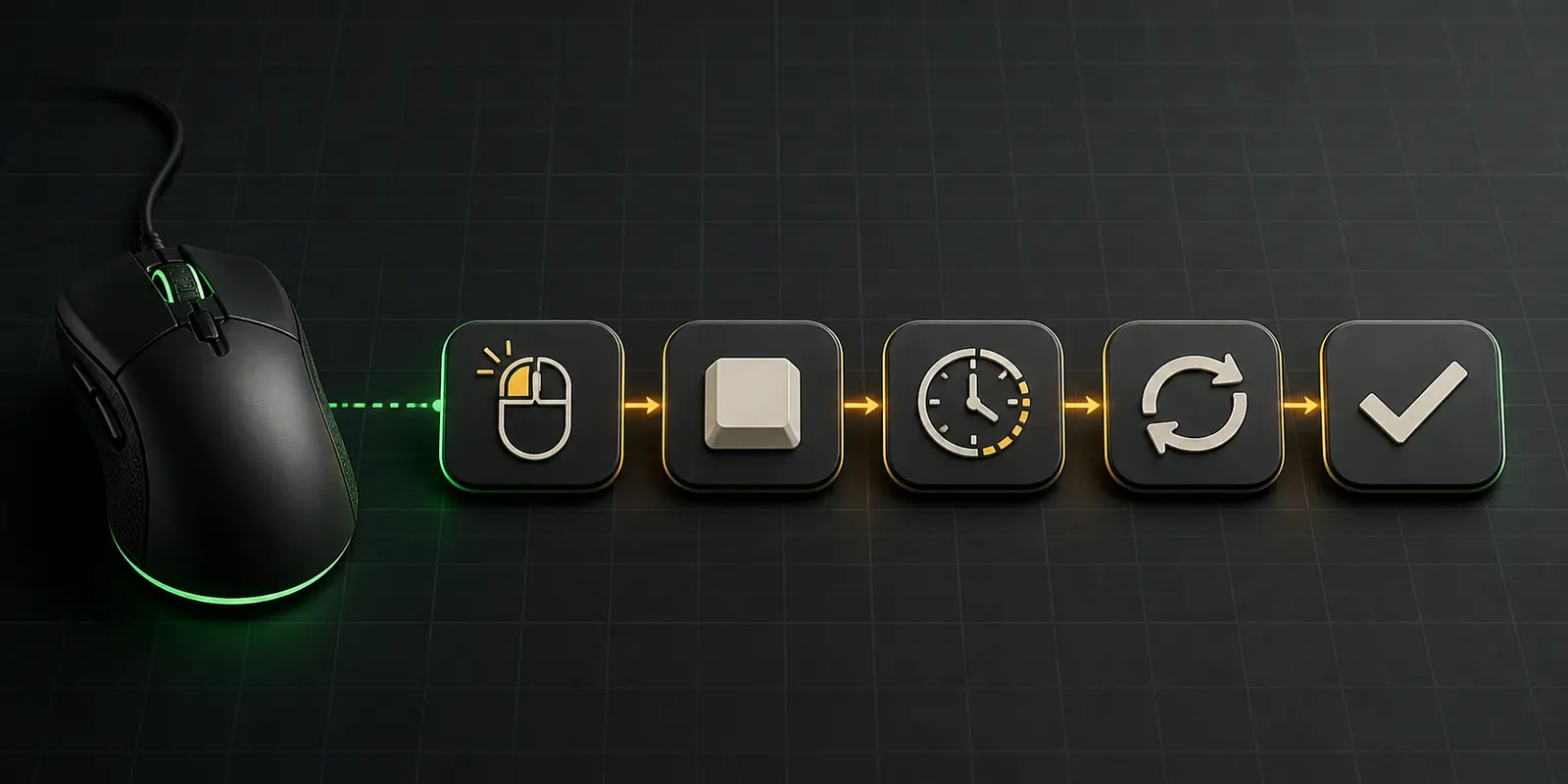
Creating a sequence does not automatically bind it to the mouse. Return to the Dashboard, open the mouse, and select the button you want to change. In the function panel choose MACRO, select the prepared item from the list, choose its playback behavior, and press SAVE. Razer notes that some reserved controls, including Windows and Fn keys on relevant keyboards, cannot be remapped.
Side buttons are usually the most practical target because they remain reachable without replacing primary movement and click functions. If the selected control does not offer the Macro category, confirm that the device is Synapse-enabled, the Macro module is installed, and you are editing the correct profile.
Choose delays and playback without creating unstable behavior
Timing is not a decorative setting. The receiving program must process one event before the next arrives. A sequence that works on the desktop may fail in a busy application if its pauses are too tight, while unnecessarily long pauses make control feel unresponsive.
| Playback approach | Good use | Main caution |
|---|---|---|
| Play once | A finite shortcut or one prepared command chain | The safest mode for initial testing |
| Repeat a set number of times | A known batch of identical actions | Keep the count small until timing is proven |
| Play while the button is held | An action that must stop as soon as you release | Make sure release is easy and reliable |
| Toggle continuous playback | Only an allowed unattended repetitive task | Plan a clear stop control before enabling it |
The exact labels can vary by device and Synapse build, but the decision is the same: define when playback starts, when it stops, and what happens if the button is pressed again. Never test an endless loop without knowing the stop method.
Organize profiles and Linked Games so the right layout loads
A profile is a complete context for the device: button assignments, sensitivity settings, lighting, and macros can all change together. Separate profiles prevent a work shortcut from appearing in a game, or a game-specific layout from affecting the desktop.
Use clear names built from the application and purpose, then connect the profile to the correct executable in Linked Games. Launch the application normally and watch which profile becomes active. If automatic switching fails, reselect the real executable rather than a launcher, confirm the profile association, and check whether Synapse is running in the system tray.
Onboard-memory support differs between devices and does not mean that every complex macro can run without software. Razer also states that on-the-fly macro recording requires Synapse to be installed and running in the background. Test the exact mouse instead of assuming that a profile stored on one model behaves identically on another.
Back up, import, and move from Synapse 3 to Synapse 4
Before changing versions, export valuable Synapse 3 macros to a clearly dated backup folder and capture screenshots of assignments, playback modes, DPI stages, and linked applications. These records remain useful even when the exported macro itself cannot be consumed by the new version.
Razer explicitly warns that Synapse 3 and Synapse 4 macro files are not interchangeable. Use the official Profile Migration Tool when your profile and device are eligible; otherwise recreate the important sequence in Synapse 4 from your written event list. After migration, compare each action and delay, then assign it to a temporary test profile before replacing the old setup.
Keep it until every button, profile link, and sequence has passed a real test. A successful installation is not proof that all behavior migrated.
Common Razer macro problems and focused fixes
The Macro tab is missing
Open the module list in Synapse and install or enable Macro, then restart the application. Let pending Synapse updates complete before testing again.
The button still performs its old action
Check the active profile, save the assignment again, and verify the physical button on the device diagram. Linked Games may have switched to another profile.
Events run in the wrong order
Inspect press and release rows, remove duplicate inputs, and insert a small pause before the step that the target application misses.
The macro stops after Windows restarts
Confirm that Synapse launches with Windows, the correct Razer ID is active where required, the Macro module loaded, and the intended profile became active.
An imported Synapse 3 file is rejected
This is expected when crossing generations. Use the migration tool for supported profiles or rebuild the sequence in Synapse 4; do not rename the file extension.
Automatic profile switching chooses the wrong layout
Remove the incorrect link and associate the profile with the program's actual executable. Launchers and helper processes can be mistaken for the main application.
Game rules, fair use, and account safety
Synapse is official device software, but that does not make every automated sequence acceptable in every game. Publishers, servers, leagues, and tournaments set their own rules. A sequence that performs several gameplay actions, repeats input, or removes a timing challenge may be treated as prohibited automation even though it was created in the mouse utility.
Check the current rules for the specific game and mode before using a macro. Prefer clearly permitted purposes such as desktop productivity, accessibility, creative applications, or offline testing. Do not rely on claims such as “undetectable” or “zero ban risk”: no device vendor or seller can guarantee how future enforcement will treat a particular behavior.
Keep a normal profile available, avoid unattended loops, and stop immediately if an application behaves differently from your test. Responsible configuration means controlling both the technical sequence and the context in which it runs.
Sources and further reading
This guide was written from scratch and checked against current first-party documentation. The references below support the version status and interface steps; their wording was not copied into this article.
- Razer Support: Synapse 4 support and version status
- Razer Support: assigning a macro to a supported product
- Razer Support: exporting and importing macros
- TopMacro: Razer macros, compatible scenarios, and profile overview
Information and links checked on August 21, 2026. Interface labels can change in later Synapse builds.
FAQ
Frequently asked questions about Razer macros
Should I install Synapse 4 or Synapse 3 for Razer macros?
For a new setup in 2026, use Synapse 4 after confirming that it supports your device. Synapse 3 is a legacy option: Razer ended its updates and cloud services on February 3, 2026.
How do I create a macro in Razer Synapse 4?
Open MACRO, choose New Macro, name it, record the required key or mouse events, review the event order and delays, then test the sequence once before adding repetition.
Why can I not assign the macro to a mouse button?
Check that the mouse is Synapse-enabled, the Macro module is installed, the intended profile is active, and the selected control is programmable. Some reserved controls cannot be remapped.
Can Synapse 3 macro files be imported directly into Synapse 4?
No. Razer states that macro files from Synapse 3 and Synapse 4 are not mutually compatible. Use the official Profile Migration Tool where supported or recreate the important sequence.
Does Synapse need to run for a macro to work?
Many functions depend on Synapse running, and Razer specifically requires it for on-the-fly macro recording. Onboard behavior varies by device and by the complexity of the assignment, so test your exact model.
Are Razer macros allowed in every game?
No. Official device software does not override a game, server, league, or tournament rule. Check the current policy for the exact game and avoid sequences that provide prohibited automation or an unfair advantage.