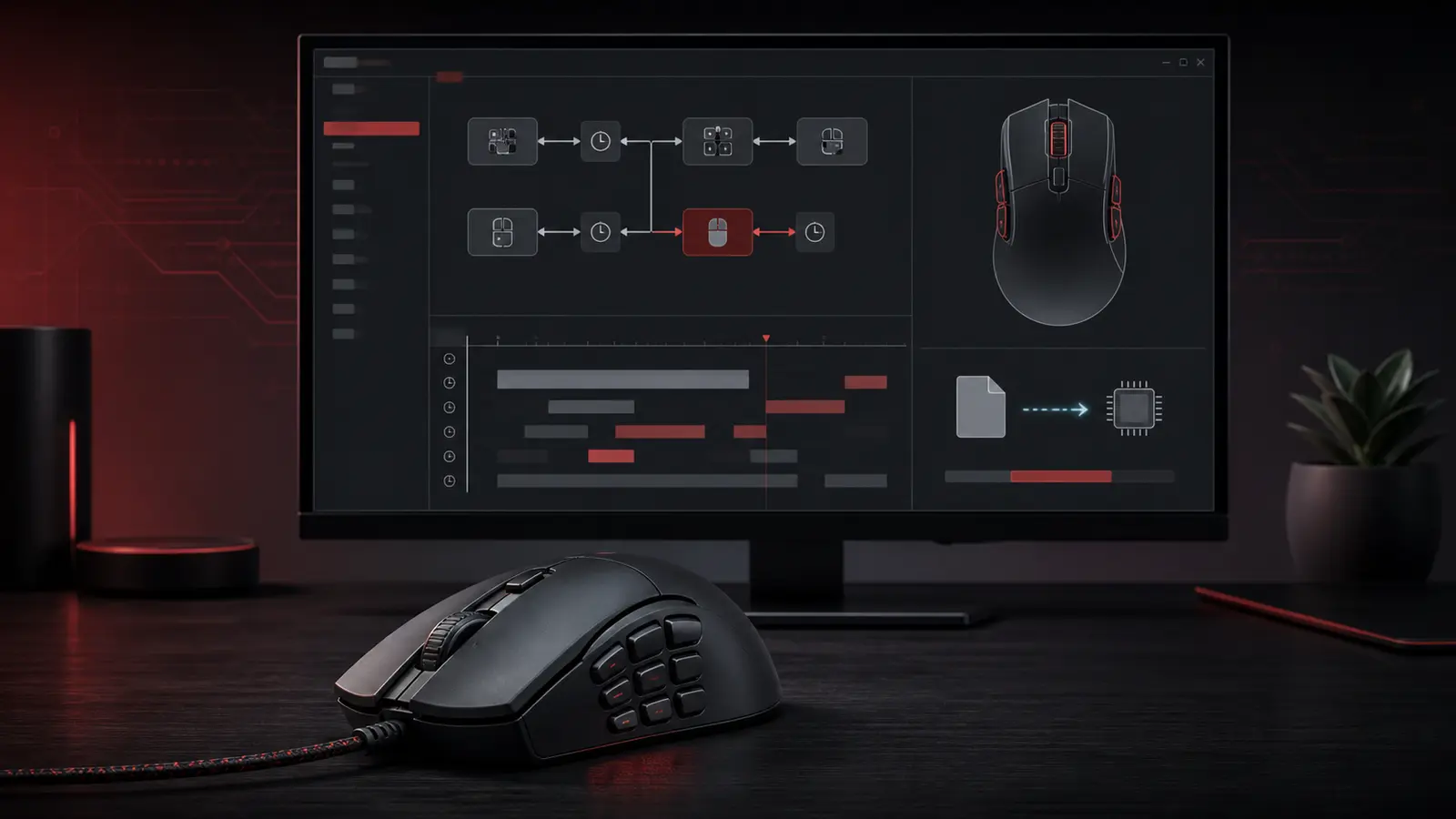
Quick answer: the dependable X7 Oscar Editor workflow
Read the exact model code under the mouse, download the editor assigned to that model by A4Tech, keep a recovery profile, extract and inspect the AMC file, add it through the program’s own library controls, bind it to one available side button, save the assignment, write it to the device, wait for the progress to finish, and test one complete cycle outside a competitive match.
For a shorter screenshot-led sequence, open the TopMacro X7 Oscar Editor guide for this language. The article you are reading is an independently written expansion with a different structure, current model checks, safer file handling, and layer-by-layer diagnosis.
Identify the exact mouse before choosing an Oscar utility
“X7” names a broad device family, not one universal editor. Turn the mouse over, photograph its model label, and compare that code with A4Tech’s current download list. The interface, accepted files, button diagram, and ability to store settings can differ even between visually similar mice.
| Official utility | Models currently listed as examples | What to verify |
|---|---|---|
| Oscar Mouse Editor | X-710K, X-710BK, X-718BK, X-730K, X-740K and several XL or 10-key variants | The downloaded package names your exact model and its on-screen button diagram matches the physical mouse |
| 5-Mode Oscar Editor | F2, F3, F4, F5, F6 and F7 groups shown on the current download page | The model, lens variant when stated, Windows version, and hardware ID belong to the same download entry |
| Anti-Vibrate Oscar Editor | X-760H, X-710BH, XL-760H, XL-750BH and XL-747H groups | Do not substitute the ordinary Oscar package merely because its installer opens |
| X7 OscarLite | X77, X87 and X89 on the current official list | Follow OscarLite’s own controls rather than instructions written for an older full editor |
The manufacturer may revise package names and model lists after this guide is published. Treat the current official download entry for your exact code as stronger evidence than a forum screenshot, an old disk path, or the fact that an unrelated Oscar application starts successfully.
Prepare a reversible installation before importing anything
A macro problem is much easier to solve when the ordinary mouse state is documented first. The older official Oscar manual also advises removing other Oscar mouse software before installation and restarting afterward, but follow the current installer for your model because modern Windows packages may handle upgrades differently.
- Save the working state. Capture the active profile, button map, DPI or CPI levels, report rate, and any application-specific settings. Export the profile if your editor offers a supported export command.
- Use the official download. Avoid repacked installers and files sent through unknown archives. Check the model list, supported Windows version, publisher information, and release date on the manufacturer page.
- Close competing mouse utilities. Two editors can detect the same USB device or rewrite its buttons. Exit them before setup; uninstall only when the official package requires it or a controlled compatibility test justifies it.
- Connect directly for the first write. Use a stable USB port on the computer, allow Windows to finish detection, and avoid disconnecting the mouse while a profile is being transferred.
- Launch normally first. Administrator mode is useful only as a focused privilege test. It should not be the permanent answer to an incorrect editor, unsupported model, or missing library file.
- Keep a neutral recovery profile. Leave ordinary left click and navigation available. A separate test profile and one side-button assignment are safer than changing several primary controls at once.
Confirm that the new editor displays the correct mouse and real controls before importing or applying anything. If detection is wrong, restore the known setup and recheck the model rather than clicking through random write commands.
What an AMC macro file is—and what it is not
An AMC file is a macro document used by compatible A4Tech Oscar workflows. It contains an input sequence and timing data for the editor to interpret; it is not a universal Windows program and it does not become compatible with another mouse suite merely because its extension is renamed.
Opening a file and assigning a button are separate operations. A document can appear in the editor without being attached to the active profile, and an attached action can remain only in the desktop configuration until the device write succeeds.
Add the AMC file through Oscar Editor’s real MacroLibrary
Older guides often publish one fixed Program Files path, but that path can change with 32-bit versus 64-bit installation, editor generation, custom destination, and Windows user context. The most reliable route begins inside the installed utility, where its Open or Save As dialog reveals the library that this build actually uses.
- Open the matching Oscar editor.
Verify the detected model or button diagram before touching the profile. If the screen belongs to another mouse, stop here.
- Enter the macro or script area.
Look for the macro manager, script operation, Oscar function, or equivalent control used by your build. Translated releases may use different wording.
- Choose Open or the library command.
Browse to the extracted AMC file. If the dialog opens in MacroLibrary, note that exact location instead of copying a path from another computer.
- Save a clearly named working copy.
Use Save As when available so the untouched download remains separate. Store the edited copy in the library recognized by this installation.
- Reopen it from the editor.
Confirm that the item appears under the expected name after closing and reopening the selection list. This proves more than seeing a file in File Explorer.
- Inspect the event sequence.
Before assigning the document to hardware, check the expected trigger, event order, delays, repeats, and every event that releases a mouse button or keyboard key.
If your editor has no visible import command, place a copy only in the MacroLibrary folder revealed by its own file dialog, then reopen the program. Do not modify installation binaries or unknown data folders, and never move the only original copy.
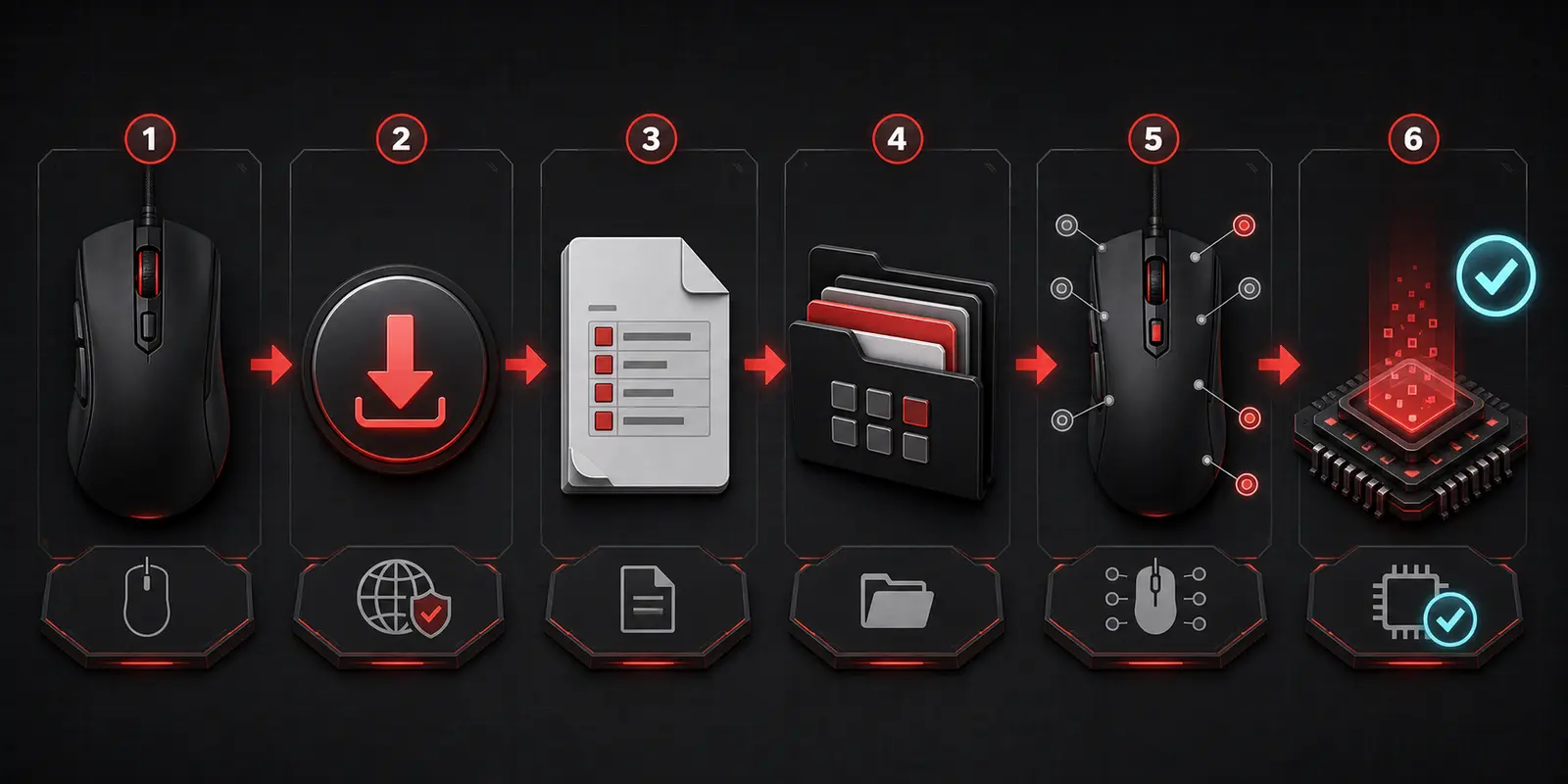
Write the saved profile to the mouse and wait for completion
Saving the AMC document and saving the button assignment may still leave the configuration only inside the editor. A separate command—often labelled Download to Mouse, Apply, Save, or a model-specific equivalent—commits the active profile to the device or its supported configuration layer.
| Layer | What it preserves | How to confirm it |
|---|---|---|
| AMC document | The event sequence and timing edited in the macro workspace | Close and reopen the file; its intended events and revision are still present |
| Button map or profile | Which physical control calls the selected AMC item | Return to the profile and verify the same button-action pairing |
| Mouse or device write | The active settings supported by the model’s onboard or device configuration | The progress finishes without disconnecting, then behavior survives the appropriate restart or editor-close test |
- Verify the active profile. A correct assignment in an inactive profile will appear to do nothing. Note the profile name or indicator before writing.
- Keep the USB connection stable. Do not unplug the mouse, close the editor, suspend Windows, or switch devices while the progress indicator is moving.
- Wait until the write is confirmed complete. A window that remains open is not proof of success. Look for 100 percent, a completion notice, an enabled control, or the documented end state for your build.
- Record the result. Capture the model, editor version, profile, physical button, AMC filename, playback mode, and date so a later update can be compared accurately.
Onboard behavior is model-specific. Some official X7 product pages advertise built-in memory that can run stored scripts without background software, but do not infer this for every mouse. Test it on the exact device only after a successful write.
Verify the macro in a controlled, reversible test
A reliable test proves more than “the button reacted.” It confirms the correct profile, the correct physical trigger, one expected sequence, all release events, a clean stop, and the persistence behavior claimed for that model.
- Start in a harmless window.
Use a text field or other safe test surface where the sequence cannot purchase, delete, publish, or affect a competitive session.
- Run exactly one cycle.
Press the assigned side button once and observe each action. If it repeats unexpectedly, switch to the neutral profile or disconnect only after any write operation has ended.
- Check the final input state.
Make sure no key or mouse button remains logically held and ordinary left click, movement, and scrolling still work.
- Close and reopen the editor.
Verify that the AMC item and button map remain in the intended profile rather than only in a temporary editing view.
- Test storage in the mouse.
Only for a model documented with appropriate memory, close the editor and repeat one safe cycle. Do not confuse a background tray process with true device storage.
- Restore and repeat once.
Return to the neutral profile, confirm normal control, then reactivate the test profile. A reversible result is more useful than a one-time success.
Create or edit your own AMC macro without losing a working copy
Oscar Editor can record or edit mouse, keyboard, timing, and model-supported actions. A good macro is short enough to audit, produces one permitted result, has balanced press and release events, and ends in a predictable state.
- Define one outcome.
Describe what the sequence should do and the exact application state it expects. Put unrelated tasks in separate AMC files.
- Duplicate the last working revision.
Use Save As and add a clear version suffix before changing events or delays. Never experiment on the only known-good file.
- Record the shortest complete sequence.
Remove movements and pauses captured accidentally during recording; retain only the actions required for the intended result.
- Match every press with a release.
Every pressed keyboard key or mouse button needs a corresponding release event unless a documented function deliberately works otherwise. If a release event is missing, Windows can remain in a stuck-input state.
- Adjust the delay beside the first failure.
If an application misses an action, change the pause around that point instead of making the whole sequence faster or slower at once.
- Test one run before enabling repetition.
Confirm start, end, and recovery in a harmless window. Add repeat behavior only when it is allowed, necessary, bounded, and easy to stop.
- Document the environment.
Keep the mouse model, editor build, AMC revision, button, profile, target application, and tested date beside the file.
Speed is not evidence of quality. A slightly slower sequence that completes consistently, releases every input, and can be restored is safer and easier to maintain than an unexplained fast loop.
X7 Oscar Editor macro does not work: diagnose the failed layer
Work from hardware toward the target application: model, package, USB detection, library file, event sequence, profile, button assignment, device write, playback mode, and application rules. Reinstalling first can remove the evidence that distinguishes these layers.
Oscar Editor does not detect the mouse
Compare the complete underside model code and, when provided, hardware ID with the official download entry. Close competing utilities, connect directly, let Windows finish detection, and reopen the matching package.
The AMC file is absent from the list
Extract it from the archive, confirm the extension and trusted origin, use Open or Save As inside the editor, and place a copy only in the MacroLibrary revealed by that build. Then reopen the list.
The file opens but the mouse button is unchanged
The library step worked but the assignment or profile save did not. Select the physical button, choose the exact AMC revision, save the map, and verify it before writing to the device.
The assignment appears correct but nothing runs
Check the active profile, physical button number, playback mode, completed write state, and whether the target application receives ordinary input at the same privilege level.
The wrong sequence or profile runs
Rename vague duplicates, compare the selected profile with its indicator, and confirm whether the button directly plays the AMC item or changes a mode used by another trigger.
Actions are skipped, duplicated, or remain pressed
Test one cycle and inspect the first failed action. Make sure every keyboard key and mouse button that is pressed is later released, then increase only the delay beside the failure. Disable indefinite repetition until the sequence ends cleanly.
The setup works only while the editor is open
Confirm whether the exact model officially includes suitable onboard memory and whether the device write completed. A background editor requirement is not necessarily a fault on models without that storage behavior.
The setup stopped working after an update
Return to the neutral profile, compare the saved model and editor build, reopen the known-good AMC revision, and reapply one side-button test before changing timing or importing other files.
For the original compact walkthrough and its screenshots in the closest available language, compare the localized TopMacro X7 Oscar Editor article.
If you want a prepared macro, browse the EasyMacro store and confirm the supported mouse software, exact trigger, target application, and setup instructions before purchase.
Use mouse automation only where current rules permit it
Oscar Editor is official device software, but this does not make every recorded or downloaded sequence acceptable everywhere. Games, servers, leagues, workplaces, and applications can restrict repeated input, multi-action bindings, recoil-related assistance, unattended actions, or any automation that creates an unfair or unsafe result.
Read the current rules for the exact game, mode, server, and event before enabling a macro. No hardware maker, software publisher, guide, or file seller can guarantee that a configuration is “undetectable,” permanently allowed, or protected from later policy changes.
Keep manual control available, test one finite cycle, use the smallest sequence needed for a permitted purpose, and stop if the behavior differs from the documented intent. Technical operation and authorized use are separate requirements; both must be satisfied.
Sources and editorial verification
This EasyMacro guide was independently planned and written from a new outline. Official A4Tech materials were used to verify current editor families, model-selection principles, button assignment, saving, and model-specific onboard memory. The corresponding TopMacro page was checked for the practical Oscar workflow without copying its sentences or paragraph order.
- A4Tech X7 official download page: editor packages, model groups, Windows versions, and hardware IDs
- A4Tech official Oscar Mouse Editor manual: installation, Script Operation, button tasks, Save, and Apply
- A4Tech X7 official X-710BK product page: example of model-specific onboard memory
- TopMacro: localized X7 Oscar Editor macro installation walkthrough
Sources and links checked on August 22, 2026. Download names, supported models, interface labels, Windows requirements, and product availability can change after publication.
FAQ
Questions about X7 Oscar Editor macros
How do I install an AMC macro in X7 Oscar Editor?
Confirm the exact mouse model and matching official editor, preserve the current profile, extract and inspect the AMC file, open or copy it through the editor’s MacroLibrary workflow, select a programmable non-primary button, choose the macro, save the assignment, write or download the settings to the mouse, wait for completion, and test one finite cycle.
Which Oscar Editor should I download for my A4Tech X7 mouse?
Use the package listed for the exact model on the official X7 download page. Oscar Mouse Editor, 5-Mode Oscar Editor, Anti-Vibrate Oscar Editor, and X7 OscarLite serve different model groups; a successful installation alone does not prove compatibility.
Where is the X7 MacroLibrary folder?
Its location can vary with editor generation, Windows architecture, installation choice, and user profile. Prefer Open, Save As, or the library command inside your installed editor. If a physical folder is required, locate the program’s actual MacroLibrary folder from its shortcut or file dialog instead of pasting an unverified path.
Can I assign an X7 macro to the left mouse button?
Some documented Oscar models reserve the left button and other functions, while layouts differ by mouse and editor. Do not try to bypass a disabled control. Start with an available side button so normal navigation and a recovery path remain intact.
Why does the macro disappear after I restart Oscar Editor?
The file may have been opened temporarily but not saved into the active library, the button assignment may not have been saved, or the profile may not have been written to the mouse. Verify all three layers separately: library item, selected button, and completed device write.
Will an X7 macro work without Oscar Editor running?
Only when the exact mouse provides suitable onboard memory and the assignment was successfully written to it. Official product pages advertise onboard memory for some X7 models, but this must not be assumed for every device or every function.
Are A4Tech X7 mouse macros allowed in every game?
No. Official mouse software does not override the rules of a game, server, league, or tournament. Check the current policy for the exact title and mode before using repeated, multi-action, recoil-related, or unattended input.