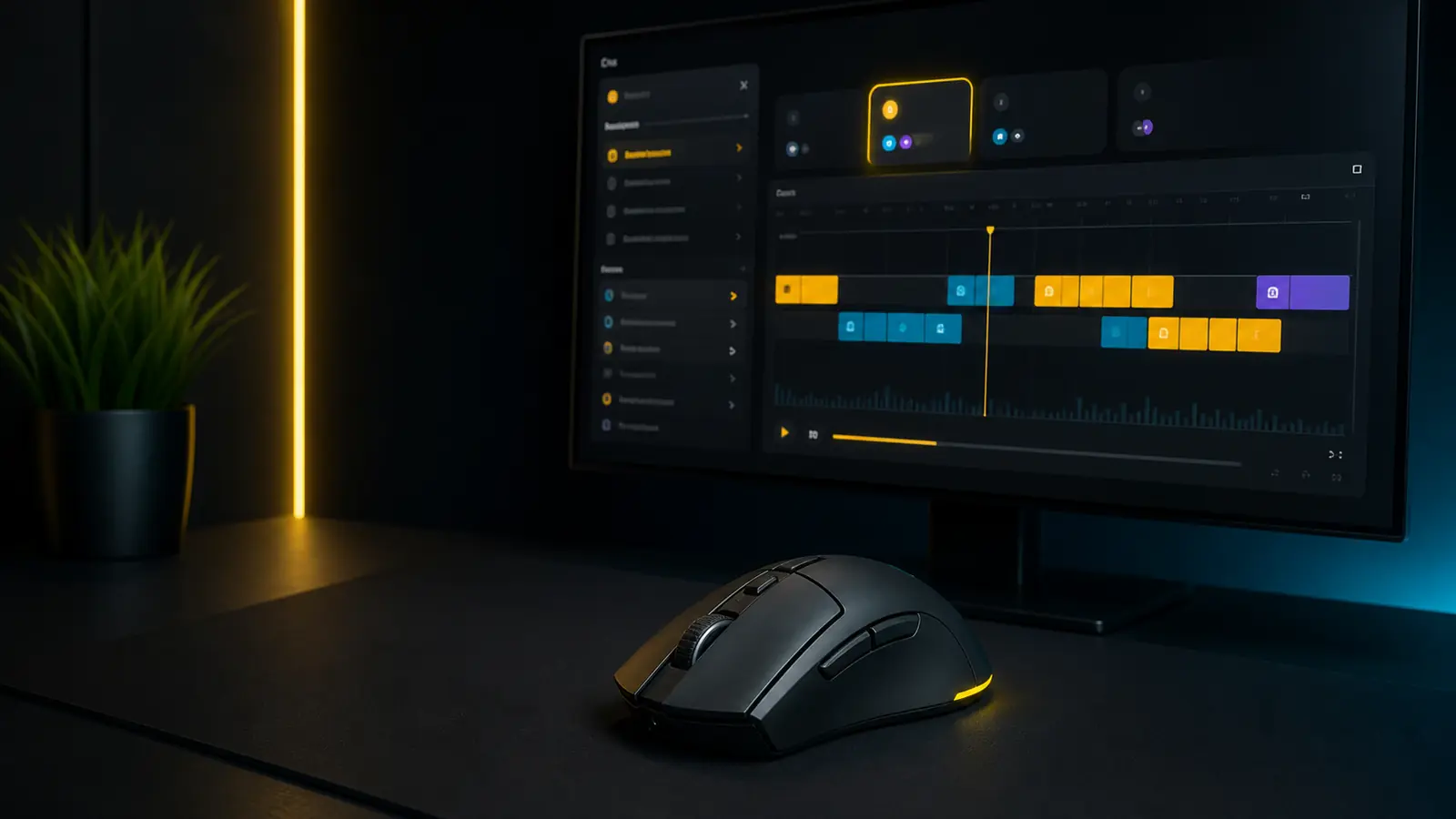
Quick answer: identify the file before you install anything
For an ordinary shortcut, create a native macro under Assignments → Macros and drag it onto a mouse button. If the supplied file ends in .lua, open the scripting editor of the intended application profile instead; a Lua profile script cannot be imported through the normal macro recorder.
For screenshots and the shorter product-oriented route, compare the matching TopMacro Logitech G HUB guide for this language. The workflow below is an independent, expanded explanation built around current Logitech documentation and safer diagnosis.
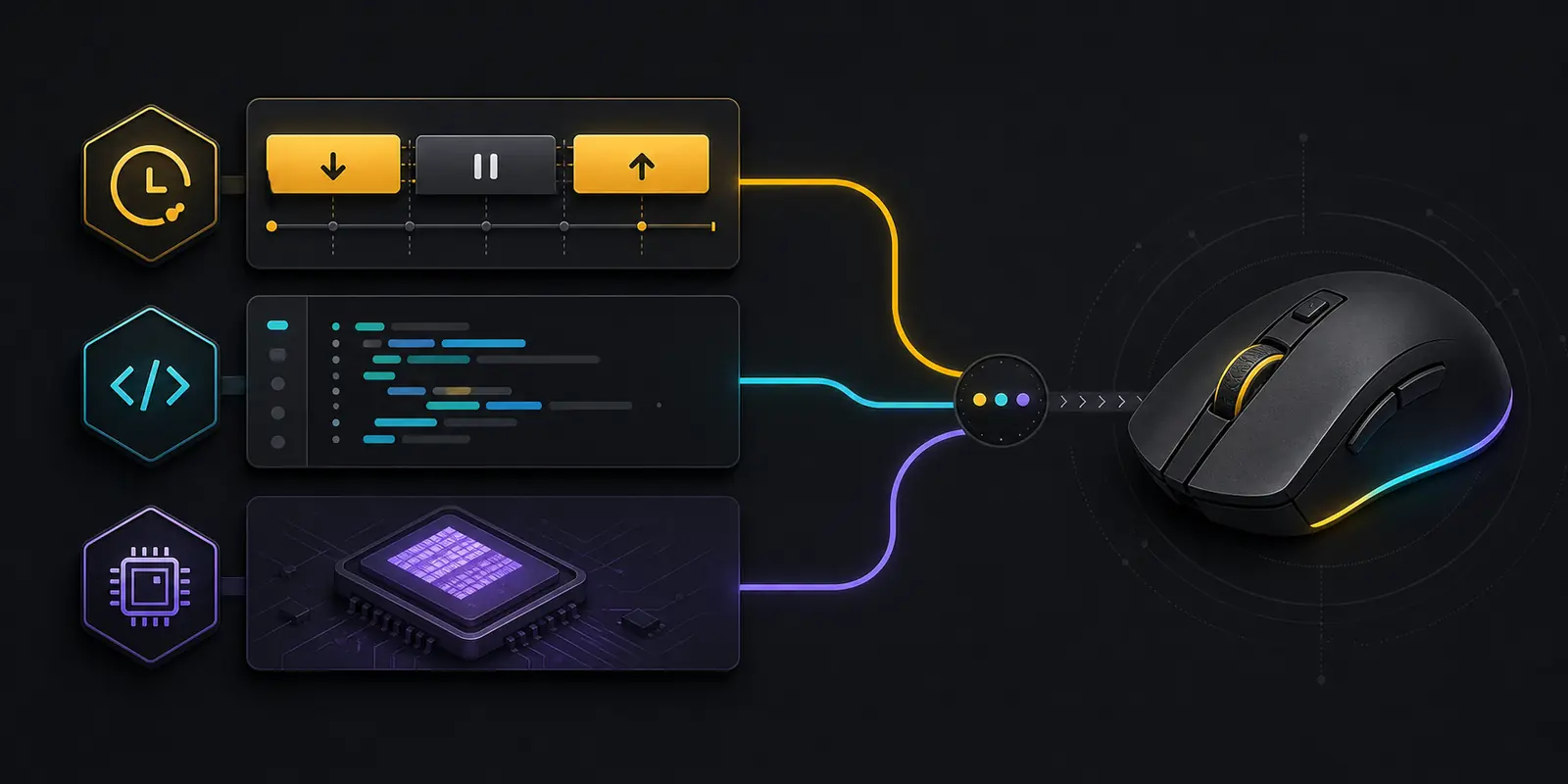
Choose the correct method: native macro, Lua script, or onboard memory
G HUB groups several different automation features around the same device, so file labels are easy to misread. Choose by the required result and where the logic must run, not by copying menu steps from another mouse model.
| Method | Best suited to | Important limitation |
|---|---|---|
| Native G HUB macro | Recorded keystrokes, clicks, text, shortcuts, and simple action chains | Runs through G HUB and must be assigned to a supported button |
| Lua profile script | Conditional profile logic and events supported by the scripting editor | The Scripting option is not available for every device, platform, or build |
| Onboard-memory assignment | Portable basic controls when G HUB is not running | Complex repeat modes, sequences, and scripts are not stored as full desktop logic |
A downloaded .lua file belongs to the second row. A sequence you record inside Assignments belongs to the first. Switching on onboard memory does not convert either one into unrestricted firmware automation.
Prepare G HUB, the device, and a rollback path
Before recording or loading anything, make the starting state reproducible. This prevents an update, wrong profile, or primary-button remap from being mistaken for a defective mouse.
- Install G HUB from Logitech. Use the official product page, finish pending updates, reconnect the intended mouse, and confirm that its image and settings open normally.
- Inspect downloaded files. Extract archives into a named folder, scan them, read the included notes, and reject unexpected executables when the package should contain only data or a script.
- Record the current layout. Capture the active profile and button map before editing. Keep normal primary click available, preferably with a spare mouse nearby.
- Choose the real application profile. Select or create the profile for the target executable. Desktop Default is a fallback, not a universal requirement.
- Start with one finite action. Use a harmless text editor or test window and one non-primary side button until the trigger, timing, and stop behavior are clear.
How to create and assign a native G HUB macro
The native editor is the simplest route for keyboard shortcuts, controlled click chains, text, and application commands. Build a small sequence first, prove it, and only then add timing or repetition.
- Open the intended device.
Launch G HUB, select the mouse you are physically using, and verify the application profile shown at the top of the window.
- Enter Assignments → Macros.
Choose Macros from the assignment categories, click Create New Macro, and use a name that states the application and purpose.
- Select playback deliberately.
Start with No Repeat for a single complete run. Repeat While Holding, Toggle, and Sequence should be chosen only when their start and stop behavior is genuinely needed.
- Record or add actions.
Insert keystrokes, mouse actions, text, or a supported system command. Review the order and remove accidental events captured while the recorder was active.
- Check delays and releases.
Keep realistic pauses where the target needs processing time, and make sure every held key or button has a matching release before the sequence ends.
- Bind the result.
Save the macro, return to the assignment list, and drag it onto a programmable control in the mouse diagram. Confirm the new label before testing.
If the macro appears in the library but the physical button still performs its old function, the creation succeeded but the assignment did not. Recheck the button diagram and active profile instead of recording the sequence again.
How to load a Lua profile script without confusing it with a macro
Lua in G HUB is profile-level scripting. It reacts to supported profile and device events while G HUB is running. The exact editor entry and available events can vary, so use this route only when the current profile actually exposes Scripting.
- Select the correct application profile.
Open the profile that should own the script. A script saved under another game or Desktop will not automatically follow the intended executable.
- Open the scripting editor.
Use the profile menu and choose Scripting when it is present. If the command is missing, confirm model, platform, firmware, and G HUB support rather than forcing an unrelated procedure.
- Preserve the existing script.
Copy the current editor content into a dated text backup before replacing it. A profile normally has one active script context, so importing can overwrite useful logic.
- Load the .lua source.
Use the editor import or open command, select the extracted script, then read its configuration comments and event handlers before saving.
- Save and activate the profile.
Apply the script, switch into the linked application, and confirm in the script log that the expected profile and button event are received.
- Test one controlled trigger.
Use a harmless context, one press, and an obvious stop path. If nothing happens, diagnose profile activation and event visibility before editing timing values.
A Lua file is readable program logic. Review it for file access, external commands, endless loops, and undocumented configuration. Keep the original and your working copy separate so a failed edit can be reversed.
Make the button assignment and application profile predictable
Most intermittent failures are profile-selection failures. G HUB can switch layouts when an executable starts, while a persistent profile can intentionally lock one layout everywhere. Use one behavior at a time so you know which profile owns the button.
- Verify the executable link.
Associate the profile with the main application process, not only a launcher, updater, or shortcut that closes after startup.
- Choose a safe trigger.
Use a programmable side button for the first run. Avoid replacing primary click until an alternate control and rollback method are ready.
- Confirm the visible label.
After dragging a native macro, the device diagram should show its name on the selected control. Lua scripts instead listen for supported button events in the active profile.
- Test profile switching.
Move between Desktop and the target application while watching the profile name. The intended layout should activate on entry and return to a neutral layout on exit.
- Use persistent mode only for diagnosis.
Temporarily lock a known profile if automatic switching is uncertain. Restore per-application switching after the cause is identified.
Choose playback with the limits of onboard memory in mind
Desktop G HUB and the memory inside a mouse do not provide the same runtime. Test the chosen playback in software mode first, then decide whether a smaller portable assignment is sufficient.
| Playback or storage | Practical use | Check before relying on it |
|---|---|---|
| No Repeat | One finite shortcut or action chain | All keys release and one cycle finishes cleanly |
| Repeat While Holding | Repetition that stops with physical release | Logitech says this mode does not work from onboard memory |
| Toggle or Sequence | Alternating states or multi-stage desktop workflows | These modes also require desktop G HUB rather than onboard playback |
| Onboard Memory | Portable basic buttons and supported simple assignments | Enable it only after saving a compatible slot and testing without desktop assumptions |
When On-Board Memory mode is enabled, G HUB does not edit the mouse in the ordinary desktop way. Return to software mode for changes, or use Logitech Onboard Memory Manager only with supported mice and supported assignment types.
How to design your own macro so it remains understandable
A maintainable macro describes one allowed task, has a clear trigger, and reaches an observable end. Write the behavior in plain language before recording actions or changing a Lua script.
- Define one outcome.
For example, open an application command, enter a fixed approved phrase, or perform a small accessibility shortcut. Do not mix unrelated jobs in the first version.
- List input as press, pause, and release.
Separate each event and note which application state it assumes. This reveals missing releases and unrealistic timing before they become bugs.
- Choose the smallest suitable tool.
Use a native macro for a linear sequence. Choose Lua only when supported conditional events are genuinely required; use onboard memory only for simple portable controls.
- Build the shortest valid sequence.
Record or add only the required actions, remove accidental input, and use descriptive names for the profile, macro, and backup file.
- Test one cycle in a neutral window.
Observe the order, then adjust one delay at a time. A faster sequence is not better if the target occasionally misses an event.
- Document the working state.
Record the G HUB mode, device, profile, trigger, playback, and date. This makes a later update or second computer much easier to diagnose.
For Lua work, add diagnostic logging before complex actions and verify that profile activation and the intended button event are visible. If the trigger is not observed, rewriting the action body cannot solve the problem.
Organize profiles, versions, and backups
Keep a neutral Desktop profile with ordinary button behavior and a separate profile for each application. Name profiles and macros by purpose rather than by vague numbers. This makes the active configuration visible when G HUB switches automatically.
After a setup works, save screenshots of the assignment map, a copy of any Lua source, and a short note containing the device, G HUB version, executable path, playback mode, and date. Store the backup outside the G HUB installation directory.
If you prefer a prepared file for a supported mouse and application, review the EasyMacro catalog and verify the stated software, model, and setup requirements before purchase.
Why a Logitech G HUB macro does not work
Check the chain in order: device, file type, profile, trigger, permissions, and target rules. A random reinstall may erase useful evidence without correcting the active profile or unsupported playback mode.
The Assignments or Scripting option is missing
Confirm the exact model, operating system, firmware, and current G HUB support. Not every device exposes every feature.
A .lua file is absent from the macro list
That is expected. Open the profile scripting editor instead of Assignments → Macros, and make sure the intended profile is selected.
The button keeps its old function
Drag the saved native macro onto the control, confirm its label in the device diagram, and verify that the profile you edited is active.
It works on Desktop but not in the application
Correct the executable link. If the target runs elevated, use the same privilege level for G HUB; do not enable administrator mode universally.
Events are skipped or remain held
Inspect press/release pairs, restore modest delays around the missed action, and test one cycle in a neutral window.
It fails only after enabling onboard memory
Return to software mode. Repeat While Holding, Toggle, Sequence, and profile scripts are outside the documented onboard feature set.
For a visual companion procedure and localized screenshots, also open the TopMacro Logitech macro installation article.
Use automation only where the current rules permit it
G HUB is official Logitech device software, but that does not make every recorded sequence or script acceptable in every game. Publishers, servers, leagues, and tournaments may restrict multi-action input, repetition, recoil compensation, unattended play, or other competitive assistance.
Check the current rules for the exact game, server, and mode before enabling a macro. Desktop productivity, accessibility, creative tools, and offline testing are clearer use cases, but context still matters. No file seller or hardware vendor can guarantee future enforcement outcomes.
Keep an ordinary profile available, begin with a finite test, and remain able to stop playback immediately. A good configuration is not merely one that runs; it is one you understand, can reverse, and are permitted to use.
Sources and editorial verification
This guide was written independently and checked against current first-party Logitech pages. The TopMacro link is the user-supplied reference in the corresponding language; its wording and paragraph structure were not copied.
- Logitech G: official G HUB product and download page
- Logitech Support: G-key assignments in G HUB
- Logitech Support: creating a native G HUB macro
- Logitech Support: macro limitations in On-Board Memory mode
- Logitech Support: macros and application privilege levels
- TopMacro: localized Logitech G HUB macro guide
Facts and links checked on August 22, 2026. Menu names and feature availability can change in later G HUB builds.
FAQ
Questions about Logitech G HUB macros
How do I create a macro in Logitech G HUB?
Open the intended mouse, choose Assignments, select Macros, click Create New Macro, give it a clear name, choose a playback type, record or add the actions, save, and drag the finished macro onto a programmable button.
Can I import a .lua file through the G HUB macro recorder?
No. A .lua file is a profile script, not a native recorder macro. Open the scripting editor for the correct profile, if that option is available for your device and current G HUB build, then load the script there and save it.
Why does my G HUB macro work on the desktop but not in a game?
First verify the active application profile and executable path. Logitech also advises that G HUB and the target program use the same privilege level; only run G HUB elevated when the target is elevated. The game may additionally restrict automation.
Do all Logitech mice support Lua scripting and onboard memory?
No. Features vary by model, platform, firmware, and G HUB version. If a Scripting or On-Board Memory option is absent, do not assume that a file can enable hardware support the device does not provide.
Why does a macro stop working in onboard-memory mode?
Onboard memory supports a smaller set of actions than desktop G HUB. Logitech documents that Repeat While Holding, Toggle, and Sequence macros do not run in that mode; complex scripts also require G HUB to remain active.
Should I use a persistent Desktop profile for every macro?
Not normally. Use a profile linked to the real application so normal desktop buttons remain ordinary. A persistent Desktop profile is useful as a temporary diagnostic step when automatic profile switching is the suspected failure.
Are Logitech macros allowed in every game?
No. Official hardware software does not override game, server, league, or tournament rules. Check the current policy for the exact title and mode, especially for repetition, multi-action input, recoil compensation, or unattended play.